
Looking for a Moodle 5 theme for your university, training organization, or company? The right theme can help you build a professional learning website, make courses easier to explore, and reflect your brand without starting from scratch.
But not every Moodle site needs a custom design. For many organizations, a ready-made premium theme offers a practical middle ground between Moodle’s standard Boost theme and expensive bespoke development.
In this post, we’ll compare three of our premium Moodle 5 themes: Lumo, Edutor, and Maker. We’ll also share a few things to check before choosing a theme, so you can find an option that fits your site and your team.
What Should You Look for in a Moodle 5 Theme?
Before comparing designs, think about how your Moodle site will be used. A university learning portal may need clear navigation across many courses. A training provider may want a homepage that explains its programs and helps visitors find the right course. A corporate learning team may care most about consistent branding and a simple experience for employees.
Here are five useful questions to ask:
- Version support: Does the theme support the exact Moodle release you plan to use, such as Moodle 5.3 LTS?
- Branding: Can you adjust colors, logos, and homepage content through theme settings?
- Course experience: Are navigation, course pages, and key activities easy to use on desktop and mobile?
- Existing setup: Have you tested the theme with your essential plugins, course content, and custom CSS?
- Maintenance: Will the theme developer provide updates for newer Moodle versions, and what will those upgrades cost?
If you’re still exploring the wider market, see our guide to free and premium Moodle themes for more options.
Why Choose a Ready-Made Premium Moodle Theme?
Moodle’s standard Boost theme is a sensible choice if you need a simple site and are happy with its built-in design. At the other end, bespoke theme development can make sense when an organization has unusual design requirements or highly specialized workflows.
For many universities, training providers, corporate learning teams, and agencies, a ready-made Boost-based premium theme offers a useful alternative. You get professionally designed layouts and branding options without paying for a theme to be built from scratch. That can save setup time and reduce the amount of custom front-end code you need to maintain.
A ready-made theme isn’t a substitute for every custom requirement. It still needs to be tested with your Moodle version, plugins, and content. But if your main goals are better presentation, clearer navigation, and a branded learning website, it may be all you need.
Compare Our Three Premium Moodle 5 Themes
Not sure which theme is right for your Moodle site? Here’s a quick comparison of Lumo, Edutor, and Maker to help you understand their main differences.
All three themes are based on Moodle’s Boost theme and offer responsive layouts and settings for common branding changes. The main differences are their visual styles and homepage designs.
| Theme | Design approach | Worth considering if… |
|---|---|---|
| Lumo |
Minimal, spacious, modern View live demo |
You want flexible homepage layouts, WordPress blog integration, and options to promote courses or plans. |
| Edutor |
Professional education and training style View live demo |
You want an established design for a university or corporate training website. |
| Maker |
Flexible, polished, brand-focused View live demo |
You want a customizable look for an education or business learning site. |
There is no single best theme for every organization. Explore the demos and compare the layouts with the content you actually need to publish.
1. Lumo: A Clean, Modern Moodle 5 Theme
Good fit for: Universities, training providers, and corporate learning portals looking for a modern, minimal design with flexible homepage options.
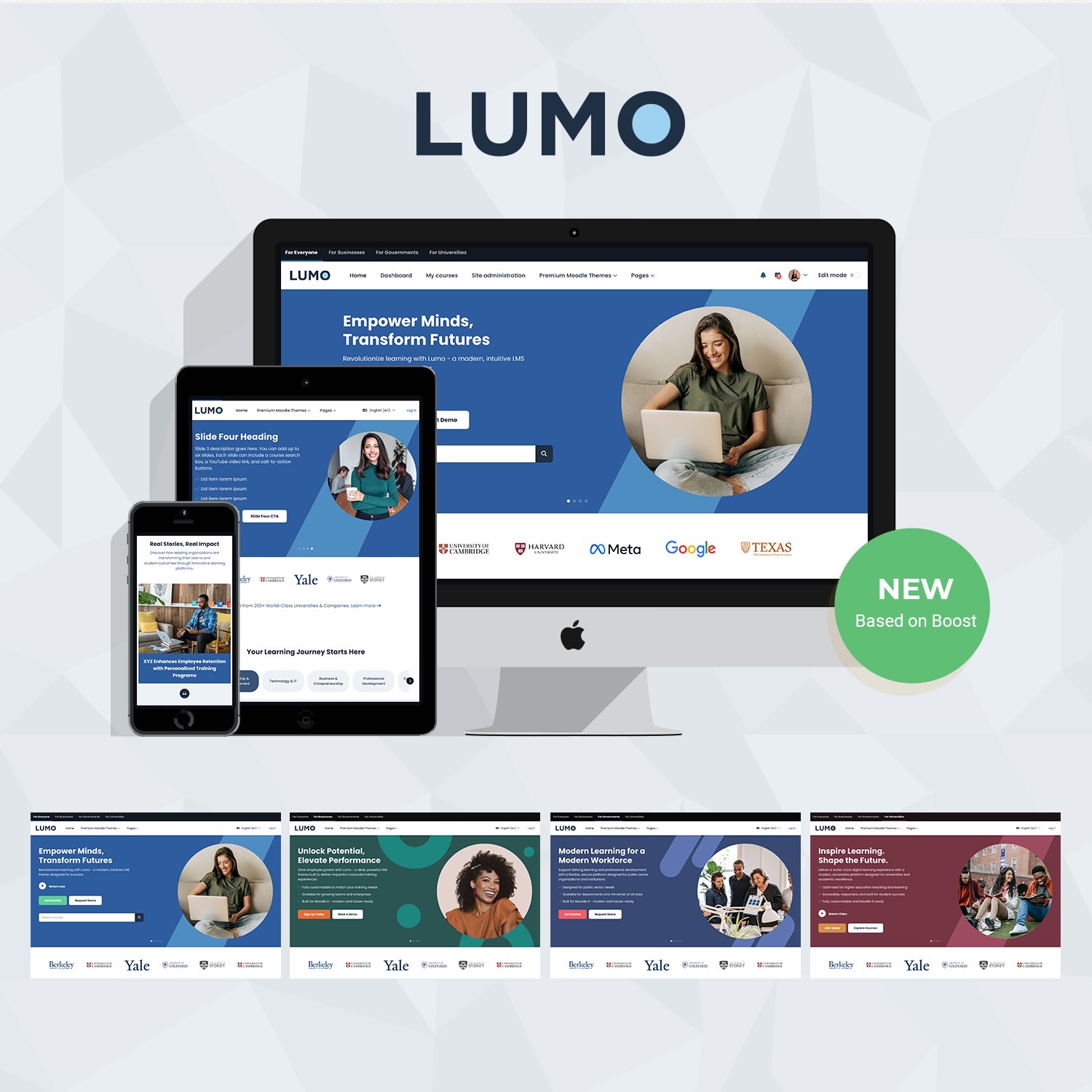
Lumo Live Demo Lumo Theme Details
Lumo was designed specifically for Moodle 5. It features a clean, modern design with plenty of white space and flexible homepage layouts. You can reorder homepage sections, customize their layouts and backgrounds, and adjust the hero section through the theme settings.
Lumo also offers WordPress blog integration and a built-in pricing table section, making it a practical choice for organizations that want to promote courses, share news, and create a professional learning website without extensive custom development.
Key features
Explore Lumo’s Homepage Design Options
Lumo gives you more control over how your homepage looks and works. These guides show you how to customize the hero section for different needs:
- How to Customize Lumo’s Hero Section: Learn how to adjust the hero section to match your branding and content.
- How to Create a Side-Image Hero Layout: Explore an alternative homepage design with an image alongside your headline and introduction.
Explore Lumo’s Live Demos
Explore our Lumo demos to see how the theme can be customized for different organizations and homepage styles:
- Demo Examples: For Everyone (Default), Business, Government, and University.
- Homepage Styles: Standard, Full Screen Hero, and Creative Hero.
For a closer look at the theme’s full capabilities, read our Lumo features and settings guide.
2. Edutor: A Professional Theme for Education and Training
Good fit for: Higher education and corporate training websites.
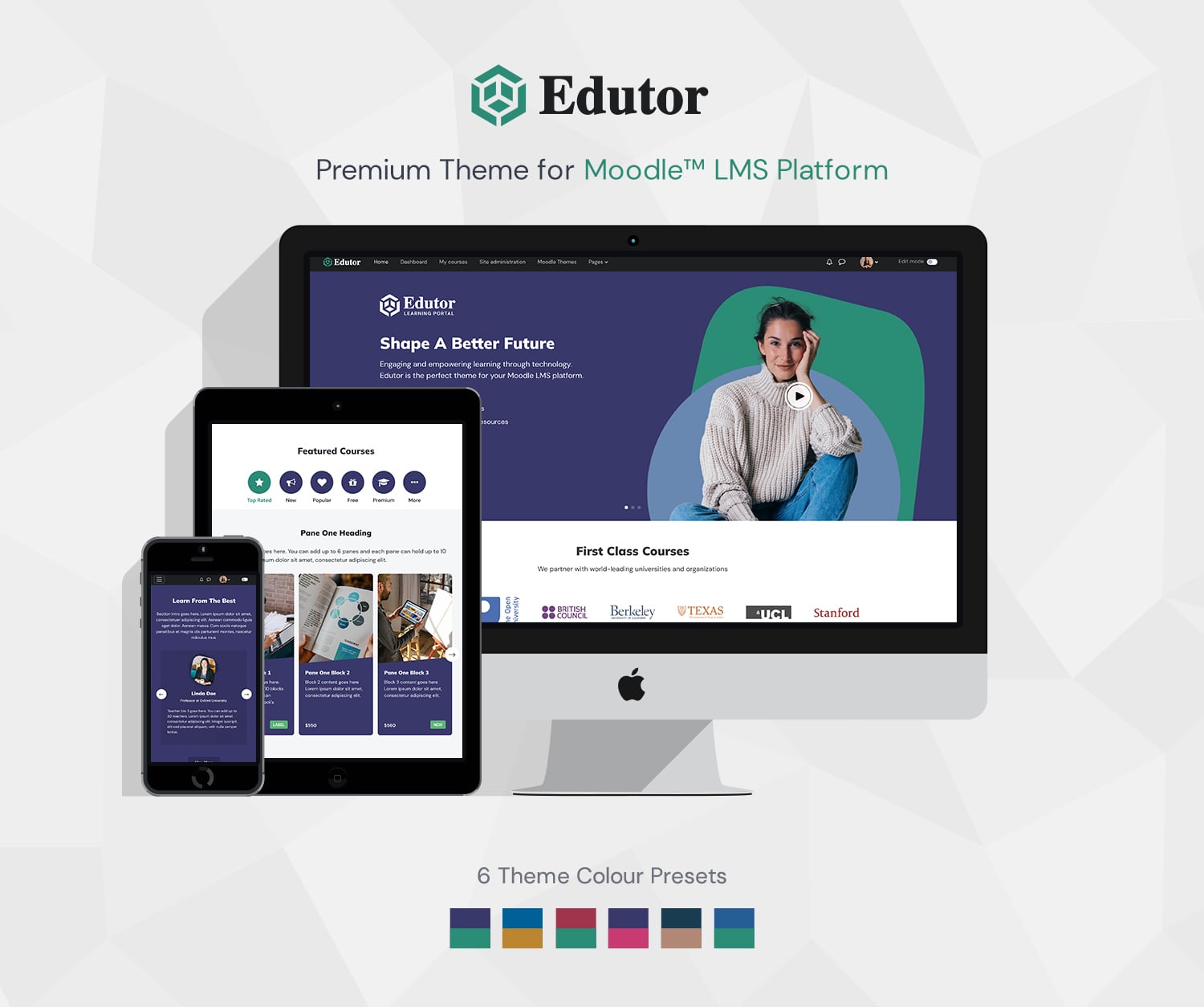
Edutor Live Demo Edutor Theme Details
Edutor is an established Moodle theme with a professional look suited to education and workplace learning. Its built-in settings help site owners apply their branding and create a more polished learning website without commissioning a bespoke design.
Key features
See our Edutor features and settings guide for more details. Check the theme product page for the version that matches your Moodle installation.
3. Maker: A Flexible Moodle Theme for Branded Learning Sites
Good fit for: Universities, training organizations, and business learning platforms.
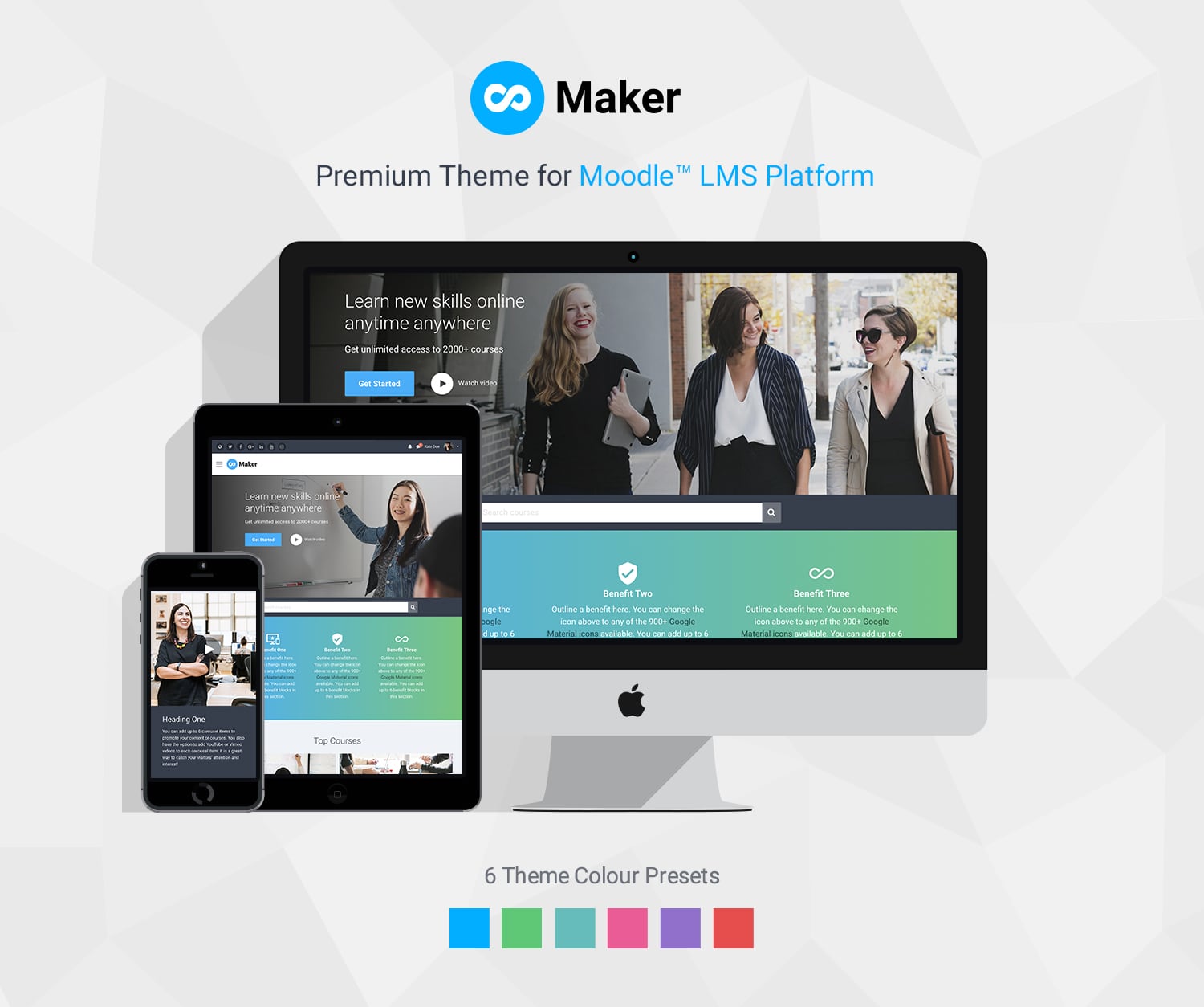
Maker Live Demo Maker Theme Details
Maker offers a polished design with options to customize the look of your Moodle site. It can be a good choice when you want a professional learning portal that follows your organization’s branding, while avoiding the cost of building a theme from scratch.
Key features
Learn more in our Maker features and settings guide.
Build Useful Pages Beyond Your Moodle Courses
Choosing a theme is only the start. Universities, training providers, and corporate learning teams often need pages that help visitors find courses, learn about training options, and contact the organization. With the right setup, all three themes can be used with the Moodle Static Pages plugin and ready-made HTML page templates.
Here are six practical guides you can use when planning your Moodle website:
- Create an effective course landing page: Present course benefits, details, and enrollment information clearly. Includes a free HTML template.
- Build a Udemy-style course landing page: Explore a different layout for promoting individual courses.
- Add a lead generation form page: Give prospective learners or corporate clients a way to inquire about training.
- Create a course catalog page: Help visitors browse and discover your training options.
- Create a blog page in Moodle: Share news, updates, and useful learning resources using the Static Pages plugin.
- Add About, Contact, and FAQ pages: Learn how to add useful content pages to your Moodle website.
These guides are useful whichever of the three themes you choose. Some examples use the Static Pages plugin and HTML templates, so check the plugin and page setup against your Moodle version before using them on a live site.
Try a Theme with Your Own Moodle Content
Public demos are useful for comparing designs, but they cannot show exactly how a theme will work with your organization’s courses, plugins, branding, and site settings.
That’s why our premium Moodle themes come with a 30-day money-back guarantee. You can purchase a theme and evaluate it privately on your own Moodle test installation, using your actual content and configuration. This gives your team a more realistic way to check the design and identify any issues before using it on your live site.
If the theme isn’t right for your project, you can request a refund within 30 days under our refund policy. Read our theme licensing and refund FAQ for details.
Our themes are sold as a one-time purchase, with optional paid upgrades for newer Moodle versions. There is no mandatory subscription. Make sure you select the theme release that matches your Moodle version.
Already Planning a Moodle 5 Upgrade?
If you’re moving from Moodle 4 to Moodle 5, choosing a theme is only one part of the project. You should also check your server requirements, third-party plugins, and customizations on a staging site before updating your live installation.
For the technical steps, read our Moodle 5.x upgrade guide, which explains the new /public/ folder structure, Router, and Composer.
If you’d like to see what has changed in the latest long-term support release, our Moodle 5.3 UI/UX and theme improvements post covers the updates most relevant to course creators, learners, and theme users.
Final Thoughts: Choose the Theme That Fits Your Site
A good Moodle theme should do more than look attractive in a screenshot. It should suit your learners, support your branding needs, and work with the Moodle version and plugins your organization uses.
If you want a professional, ready-to-customize Moodle website without the time and cost of bespoke theme development, Lumo, Edutor, and Maker are worth comparing. Start with the live demos, then test your preferred theme with your own content before making a final decision.